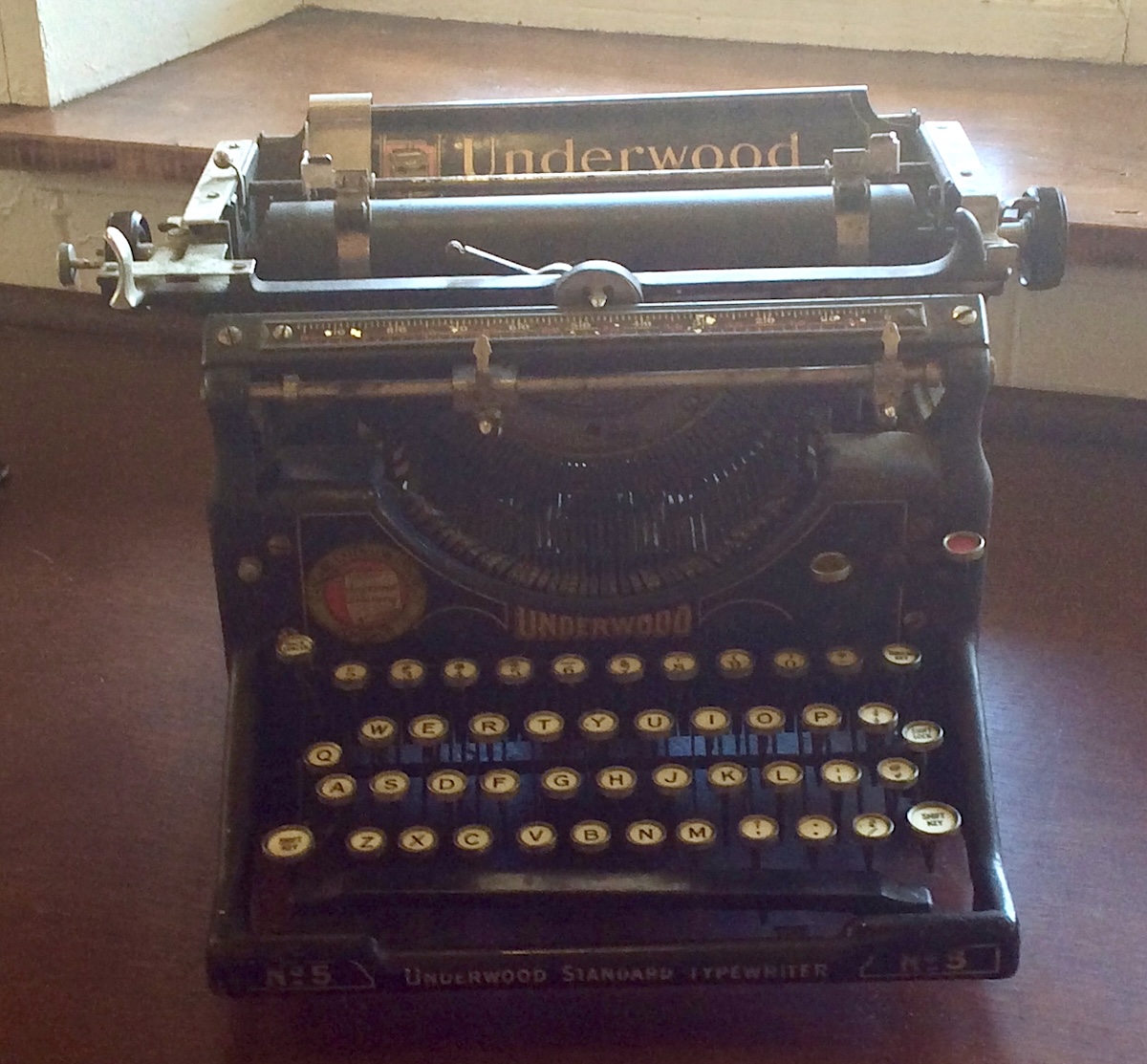
What would writers of the 1920’s think of all this?
In part one of “Creating Reflowable Text Ebooks,” I dealt primarily with how reflowable text is different from static text, how to prepare a document for conversion to an ebook file, and I referenced the application Kindle Create. This post, part two, deals with some tips and workarounds I discovered after Kindle Create generated ebook files from my documents (click here to read part one of this two-part series).
Here are some tips to help you work with your ebook within Kindle Create and to fine-tune troublesome formatting using the application Calibre should you need to do so:
1) Kindle Create provides a drop caps formatting feature which looks great within the application’s previewer, but it causes spacing problems in the finished ebook. Text is either jammed against the embellished letter or spaced too far from it. I recommend not using drop caps until an update improves this functionality.
2) Check your images carefully for alignments and sizes. You may find the conversion to your ebook file does not mirror your word processing document exactly, and you may need to delete and reinsert images using the plus sign in the tool bar. Reinserting an image usually corrects alignment and size problems.
3) Do not trust preview generators for platforms using “Look Inside.” These generators sample your ebook and create an html file using the sample. Even the slightest coding issue occurring in the conversion to html can make big differences between your ebook and the “Look Inside” preview. Create a separate word processing document for your preview then a Kindle Create project from the document to give you more control of your preview’s content, appearance, and to avoid some of the conversion problems. Upload this separate preview epub document instead of using the “Look Inside” generator.
Here is a slightly more technical explanation for the preview issue, and how I came to understand what was happening. I downloaded my “Look Inside” preview document from the ebook platform then opened the document in the application Calibre, a free ebook management application. I used Calibre’s “edit ebook” capability to view my document’s html coding. The “Look Inside” generator had inserted html class attributes within my text that pointed to the wrong classes in the style sheet. This caused blocks of text to appear in the wrong font size and, in some instances, undesired italics. I redirected the problematic attributes to the correct classes, which corrected the formatting issues. This leads to my next bit of advice.
4) Consider downloading an ebook management application like Calibre and use “edit book” if your epub document is not appearing as you like. Calibre allows you to view the html coding within your ebook and make changes. This takes a bit of programming skill, but once you make a few successful corrections, the process becomes intuitive.
5) When you export your ebook from Kindle Create, you will have a project folder like the one you see here…
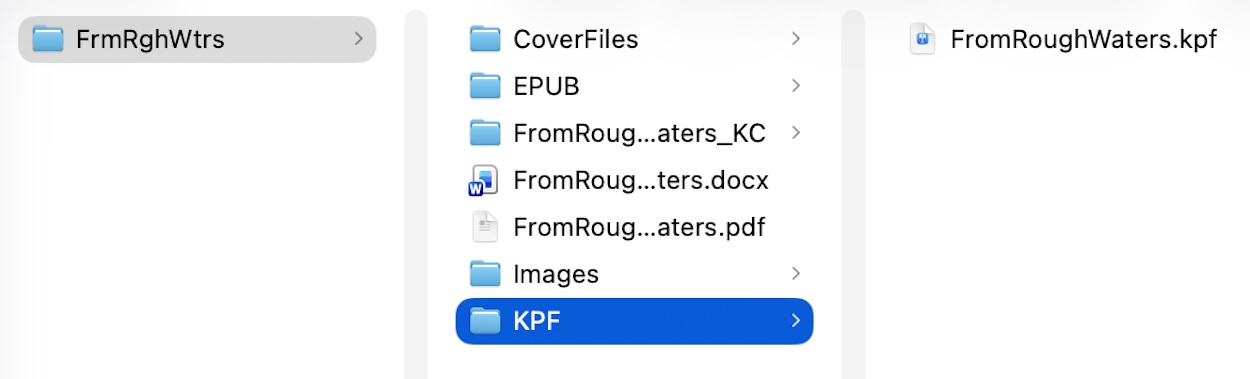
With a bit of hunting, you will find two ebook file types within the project folder. The .kpf file is native to Amazon’s Kindle. There is also an .epub file within the folder entitled “EPUB.” The .epub file type is more universal than .kpf and used by many platforms and ebook readers. These are the ebook files you will need to upload to ebook platforms.
Please keep in mind, these observations and tips are based upon my experiences in the fall of 2025. Updates to applications and the ongoing evolution of digital publishing may make your experiences a bit different.
 david cooper writing
You must be logged in to post a comment.