Most ebooks I’ve published have been of the teacher-resource variety with static pages suitable for printing and reproducing, but I recently revisited the world of reflowable text and learned quite a bit. Reflowable text ebooks allow readers to change text sizes and page orientations while reading, and their devices repaginate the books automatically. About ten years ago, I created two short-story triptychs for Amazon by uploading Microsoft Word documents, which resulted in begrudgingly acceptable ebooks—in terms of formatting, anyway. I dusted off these triptychs in recent weeks and tried the free application Kindle Create. Not only did I improve formatting exponentially, but I was able to expand my reach into the world of Barnes and Noble Online with epub files.
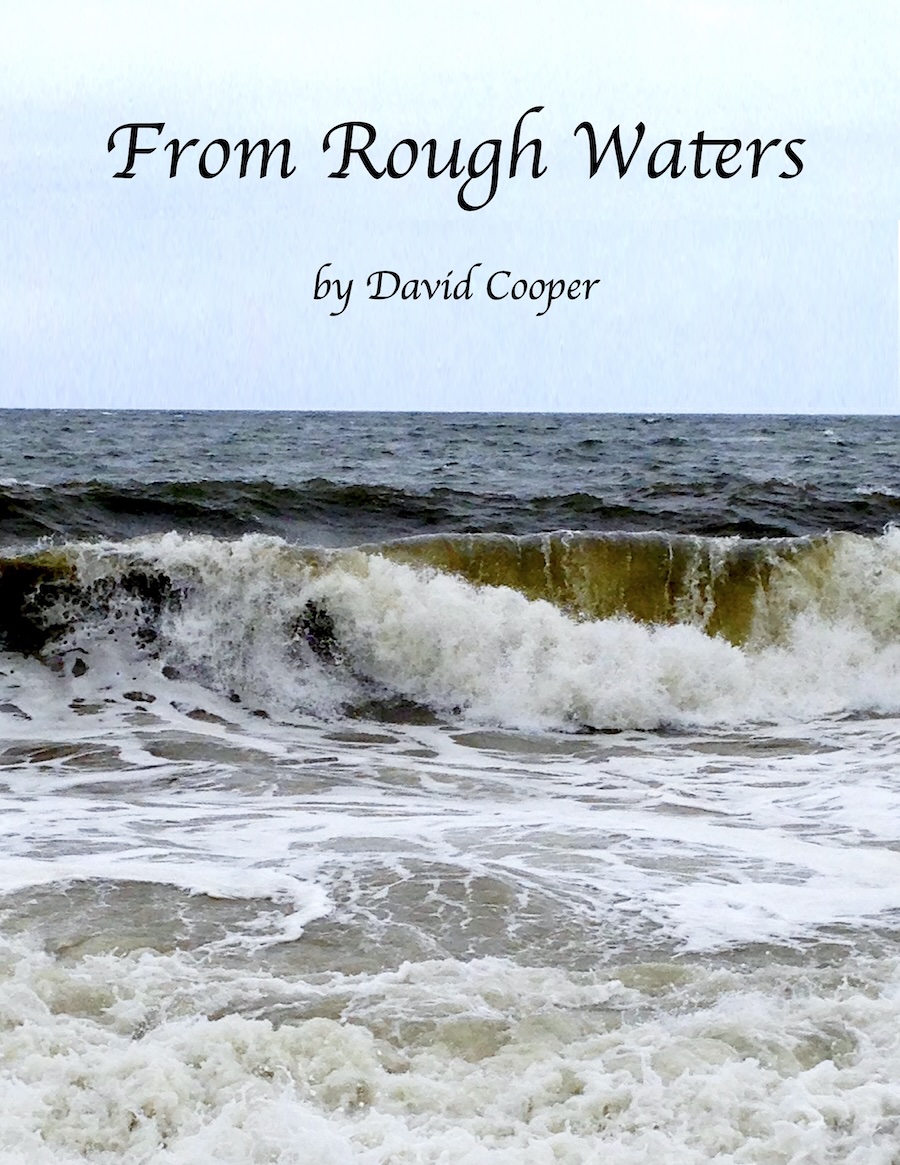
From Rough Waters is available through Amazon and Barnes and Noble for all devices.

This Way to the Egress is available through Amazon and Barnes and Noble for all devices.
A quick Google search using the terms “Kindle Create” will provide multiple download options as well as great resources for ebook creation using this and other Kindle applications—just make sure you are using the kdp.amazon.com site. Mac friends can find Kindle Create in the App Store.
Make sure the document you wish to convert to an ebook is ready to go—picture perfect—before you upload to Kindle Create (or any other ebook conversion tool, for that matter). In many cases, making last minute edits, revisions, and formatting changes is easier and cleaner within your word processing application. Changes made within ebook generators can add extra background html coding which can cause ghost-in-the-machine-type behaviors after export. An extra editorial pass through your word processing document, along with some pre-upload organizational steps, can really help in the long run. Here are some additional tips you may find helpful:
1) Don’t obsess over your choice of font prior to uploading to Kindle Create, because you will have to choose between preset formats within the application. This may seem limiting, but it is the trade-off for a truly user-friendly ebook creation process.
2) Incorporating photos and art into your ebook is possible but can be problematic. Gather your images into a single folder and modify these to common formats in their native file types. I resized my images to 4×6 at 275 dpi. Even after inserting uniform image files into your pre-ebook document, you may still need to reinsert some after import, and the resizing options within Kindle Create are a bit limited. Making sure your source images are uniform and can be found in the same folder before import will save you some headaches.
3) Only use the “Top and Bottom” text wrap option in your original document if you are including images of any type. You may also want to consider using a hard line-break, insert your image as “in line with text,” center it, and use another hard break before your text continues. Don’t be tempted to use the right and left text-wrapping features of Kindle Create after you import your document. Changing the buffers between text and the sides of images is a nightmare, and, after much consternation, I was not successful; hence, use the “Top and Bottom” option when word processing.
I will post some additional tips on this topic soon (part two). Please keep in mind, these observations and tips are based upon my experiences in the fall of 2025. Updates to applications and the ongoing evolution of digital publishing may make your experiences a bit different.
 david cooper writing
You must be logged in to post a comment.